Restart the PC
The student account returns to the clean template. Nothing a student changed survives the restart.
Every student PC starts clean at every boot, with the same desktop and applications on every seat. From your desk you can see the screens, pause Internet access and switch the room on and off.
Twelve student PCs at work. Internet on.
Sign in to the controller with your teacher account and click the Nixorium icon in the dock. The classroom view opens with every student screen. It comes set up with every PC in the room: nothing to install or pair, and no administrator access needed.
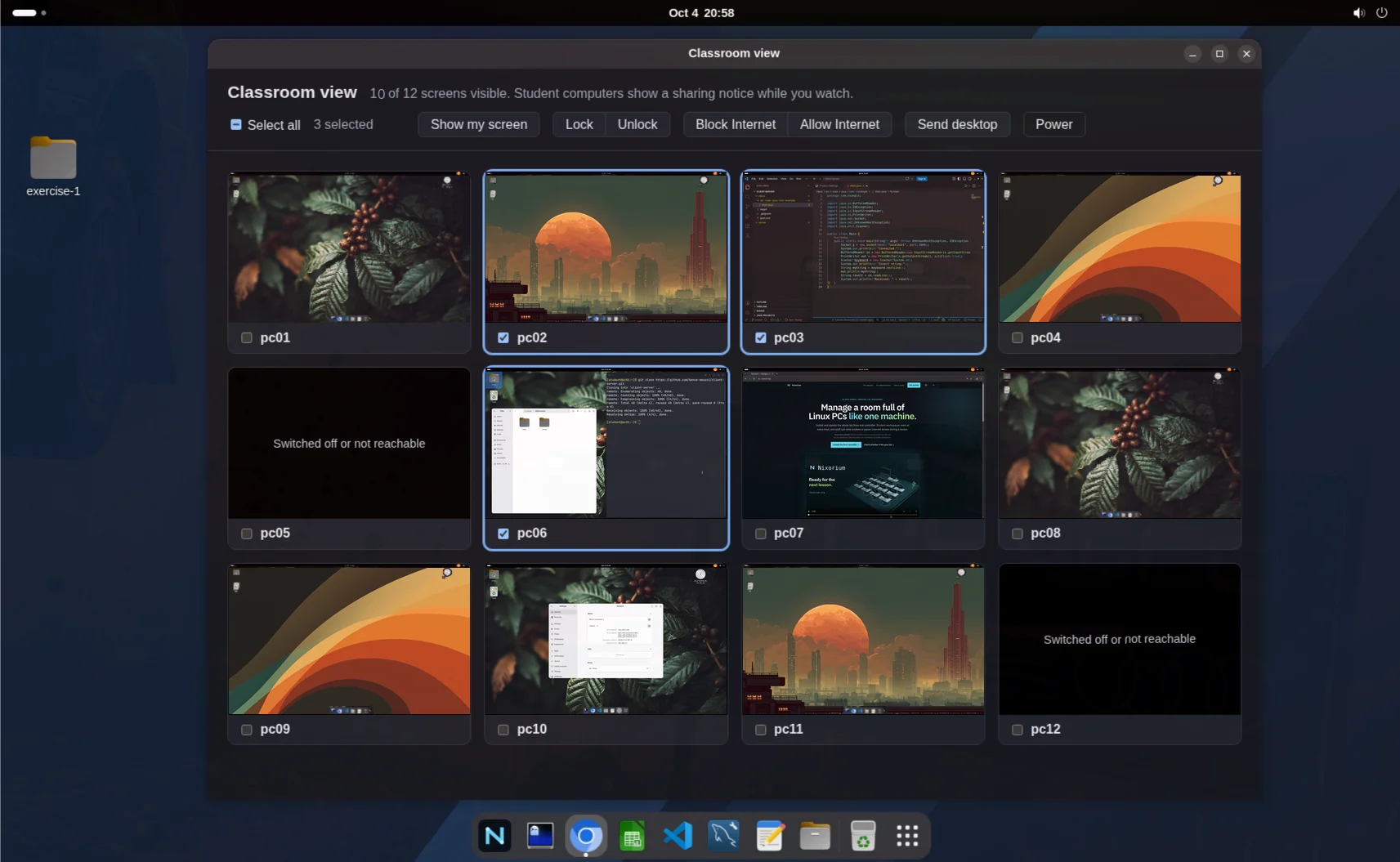
See every student screen at a glance. Click one to open it in its own window, large or full screen.
In that window, take control of the PC with your own mouse and keyboard, then hand it back. “Save screenshot” keeps a picture of that student’s screen in the Nixorium folder of your home.
Lock the selected screens with “Eyes on the teacher”: keyboard and mouse stop until you unlock them.
“Message” shows a text over the selected screens, even above a locked one; it stays until the students close it, for a time you choose, or until you unlock.
Show your whole screen, one window or a browser tab on the selected PCs while you explain.
Choose a file or a folder and send it: a copy lands on the desktop of each selected student.
“Share files → Collect from students' desktops” copies the files on the selected students’ desktops into the Nixorium folder of your home, with a folder for each PC.
Block Internet on some PCs or the whole room for a test, then allow it again. Each screen shows its PC’s real Internet state.
“Switch on” starts the selected PCs that are off; you can also restart them or shut the room down at the end of the day. Nixorium warns before interrupting a PC in use. “Schedule” switches the room on and off by itself at the times you set and never shuts down a PC in use.
While you watch, each student PC shows GNOME’s screen-sharing notice, which students cannot hide. Screens never leave the school network. If a student stops the monitoring, the card shows “Monitoring stopped on this PC” and the PC starts it again by itself within seconds.
This is why the room looks the same at the first lesson of every day, whatever happened the day before.
No network boot and no controller involved: the PC is an ordinary computer.
The previous session is kept on that PC as a snapshot, so recent work can still be recovered.
The lab’s template becomes the student home: the same applications and settings on every seat.
The student account opens on its own, without administrator rights. The PC is ready for the lesson.
The student account returns to the clean template. Nothing a student changed survives the restart.
Sign in to that PC with your teacher account and open Snapshots in the Files sidebar: the last five sessions are there. Snapshots are not backups.
The reset clears the student home. Git, a school drive or Google Drive work well for this; Nixorium does not set them up.
The technician chooses software profiles for the lab. These are the applications they bring; anything else in the NixOS package collection can be added for every PC, a group, or a single seat.
With the Programming profile each PC also has its own web server with PHP and a MySQL database for exercises, emptied at every boot.
Applications run on the PC itself, so the lesson does not depend on the network. Whatever seat a student takes, the dock, the browser and the tools for the lesson are in the same place.
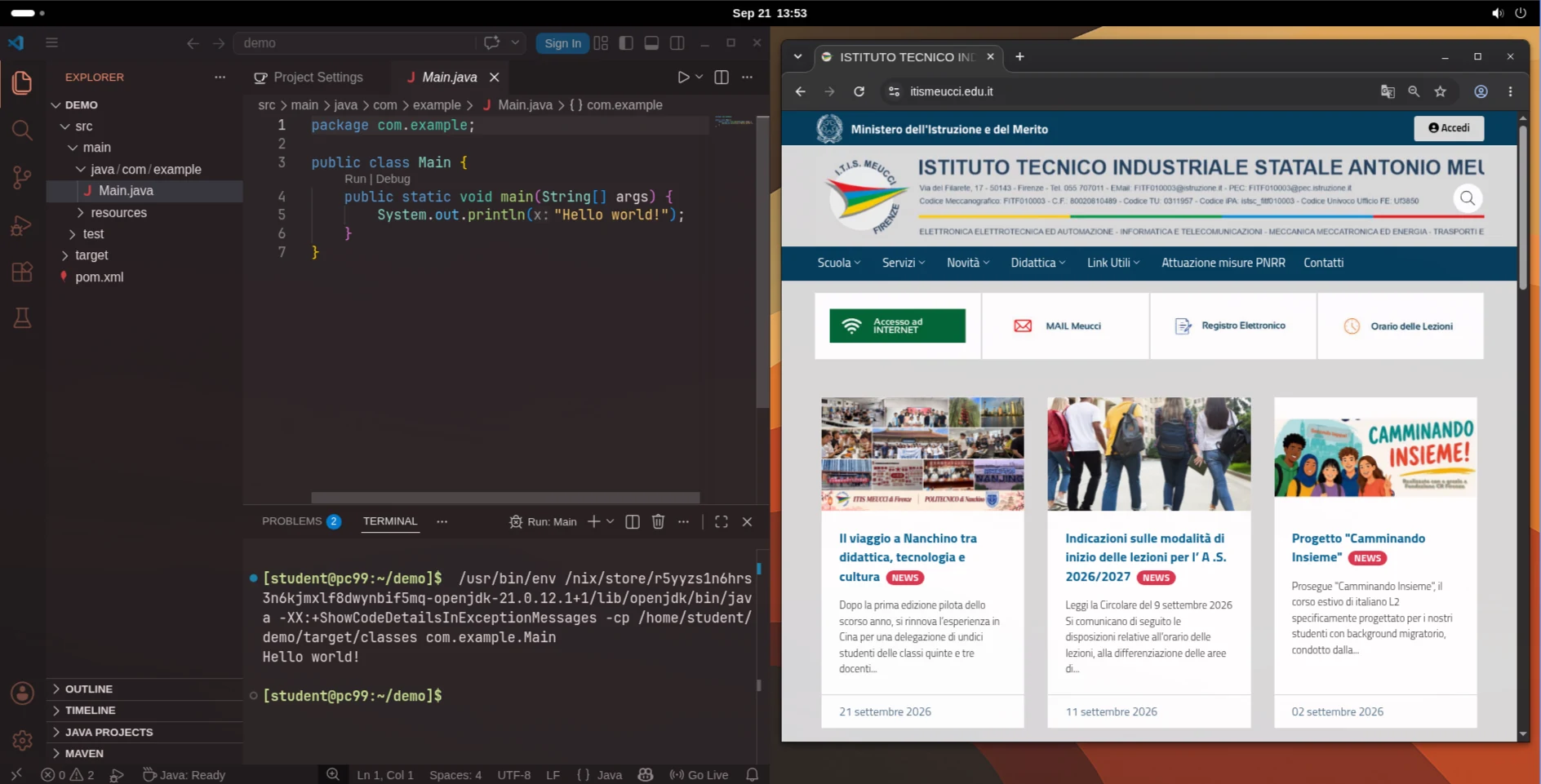
Adding software, changing the student desktop, reinstalling a PC, backups and updates are occasional tasks for the administrator account.