Open-source computer-lab management

Run a whole computer lab like one machine.

Install, update and control every student PC over the local network, from the teacher’s desk. Every boot starts clean. Free and open source.

Built on NixOS. Student PCs need no Internet of their own.

Nixorium in one minuteThe teacher’s PC becomes the lab controller, one configuration reaches every PC, each PC runs its applications locally, and the room is ready for the next lesson.
For teachers and lab technicians

Two roles, one controller.

Teachers use the room; the technician changes it only when needed. Each has their own account.

For teachers · every lesson

Every PC ready for the lesson.

  • The same clean desktop and applications on every seat, at every boot.
  • A restart restores the prepared workspace.
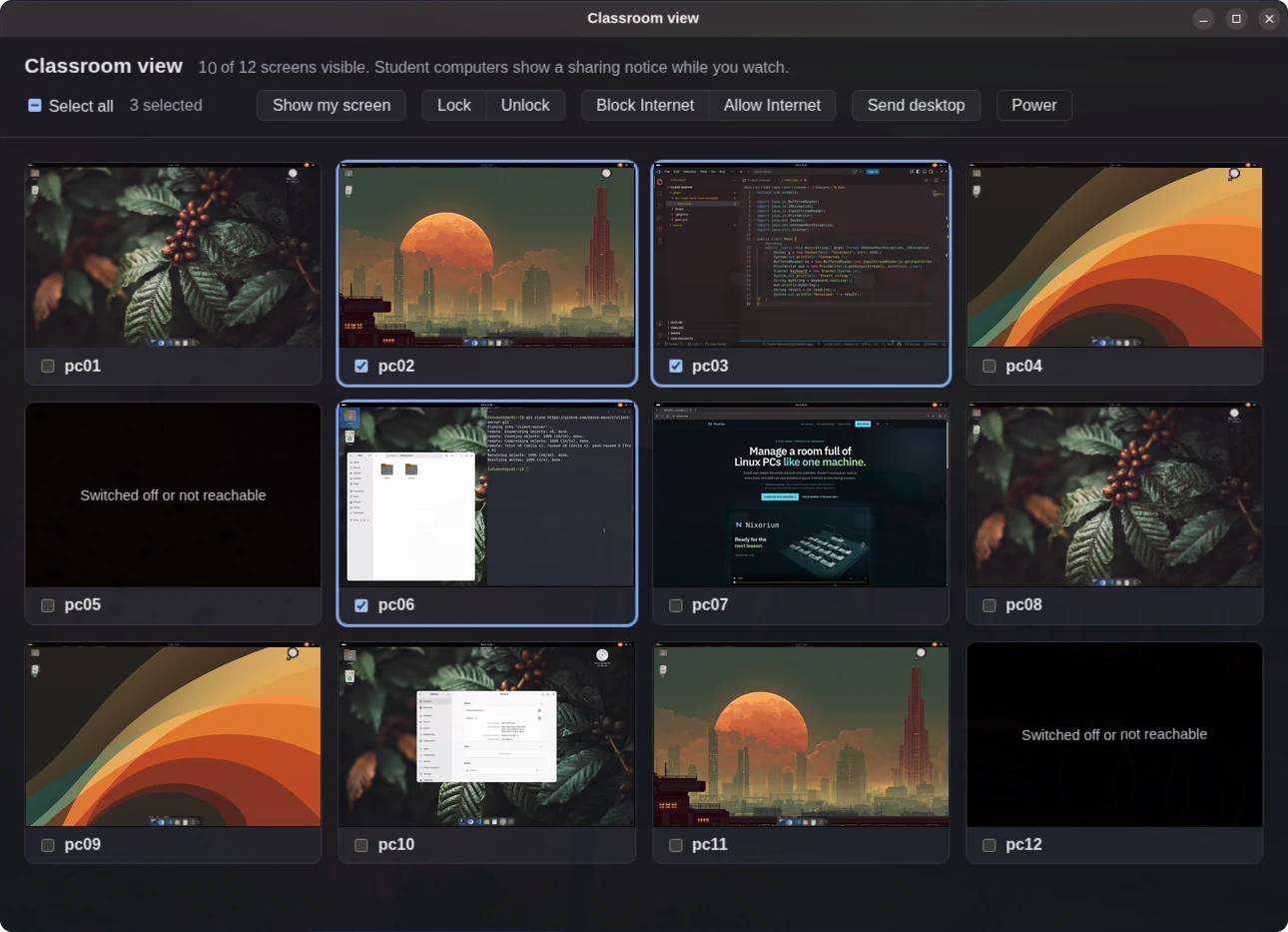
  • See the screens, pause Internet, switch the room on and off from your desk.
For teachers →
The classroom view on the controller: a grid of twelve student PCs. Ten show their screens, including VS Code, a terminal, a browser and the desktop; pc05 and pc12 are switched off. pc02, pc03 and pc06 are selected, and the toolbar offers Show my screen, Lock, Unlock, Block Internet, Allow Internet, Send desktop and Power. Current versions add Message to the toolbar, replace Send desktop with Share files (Send a folder…, Send a file… and Collect from students' desktops), and add Switch on and Schedule to Power.

For technicians · when the lab changes
One configuration for the whole room.

  • Add software or change the desktop once; update one PC, a group or all.
  • Install from the network beside the school’s DHCP; no client Internet needed.
  • Every update is reviewed and reversible, with a next step when something breaks.
For administrators →
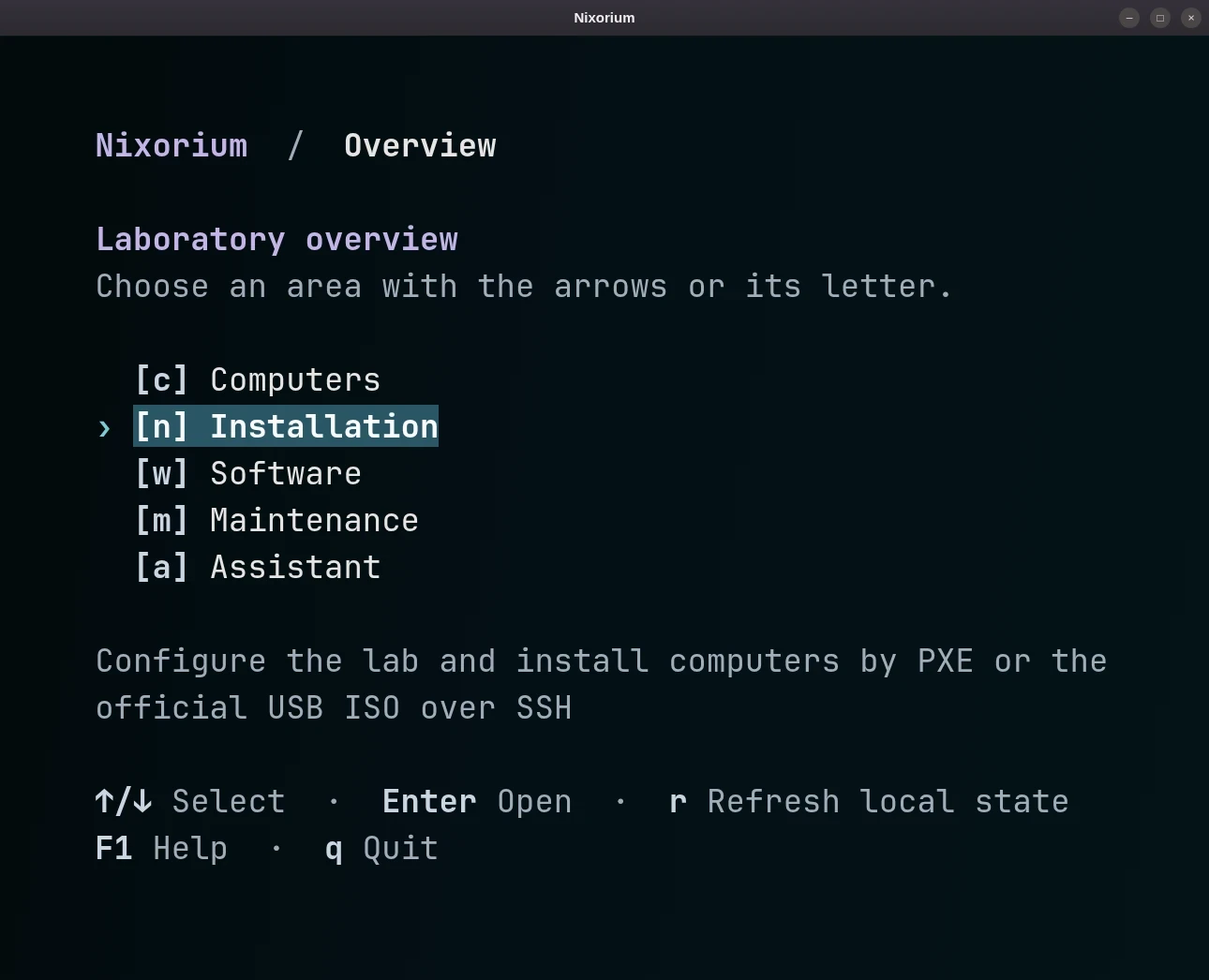
The Nixorium administrator menu in a terminal: Laboratory overview with the Computers, Installation, Software, Maintenance and Assistant areas.
Why now

Why labs are looking at Linux now.

Three things have changed for labs that run Windows today.

Hardware

Windows 10 is out of support.

Support ended in October 2025. PCs that cannot move to Windows 11 can stay in service: Nixorium needs only a 64-bit PC with UEFI.

See which PCs can stay in service →
Costs

Nothing to license.

Nixorium, NixOS and the applications in the software profiles are free and open source, including the classroom view and the reset at every boot.

See what is free →
Windows

Windows stays on a second disk.

Keep Windows on its own disk for the lessons that still need it. The PC starts Nixorium unless someone chooses Windows in the boot menu.

How the second disk works →
Where it comes from

Born in a school lab. Built for yours.

Nixorium began in 2024 in an Italian school lab where student PCs could reach the Internet only after signing in to the school network, so installation and updates had to work from inside the room. It is maintained by a teacher who has taught in school computer labs in Florence for 25 years.

Read how it began →
30
student PCs in the first lab
~1 h
observed reinstall of that first lab
1
controller preparing and serving systems
LAN
installation and updates without client Internet

The reinstall time is a historical observation, not a benchmark or guarantee.

Fit check

Is Nixorium right for your lab?

Probably a good fit if

  • You look after a room of PCs and can install Linux on them.
  • The controller and the PCs are on the same local network, and the PCs can start from the network or from USB.
  • You are tired of cloning disks every summer.
  • The student PCs have little or no Internet access of their own.

Probably not a good fit if

  • Lessons depend on Windows-only software every day, not just now and then.
  • You cannot change the operating system on the PCs, or the school network keeps them from reaching each other.
  • You need to manage Windows or macOS PCs as well.
  • You want installation with nobody at the keyboard: someone has to confirm the disk at each PC.
Get started

Start with one PC, not the whole room.

Choose a spare PC, or the teacher’s, as the controller. Install it and verify one client first.

Write to us about your lab: we reply with what to check before the first installation and how to start with two PCs.